How to Convert Globe Physical SIM to eSIM Online?
Globe allows you to convert your Globe physical SIM to eSIM with two easiest methods through the GlobeOne app and at a Globe Store. It needs just a few requirements such as your phone must be capable of using eSIM and should be unlocked and compatible for Globe networks.
Before the process of converting the Globe physical SIM you have to proceed with the Globe SIM registration through official link then you need to pay PHP 99 through the GlobeOne app. You will learn how you can check that your device is compatible with eSIM and is carrier unlocked for the Globe network.
Converting Physical SIM to eSIM Steps
There are two methods you can use to convert your Globe Physical SIM to eSIM
- Through GlobeOne App
- Visiting Globe Store
Steps of Converting Globe SIM to eSIM in GlobeOne Online
You can upgrade your physical SIM to an eSIM through the GlobeOne app online with a very simple process.
Step 1: Open the GlobeOne app and go to the Home screen.
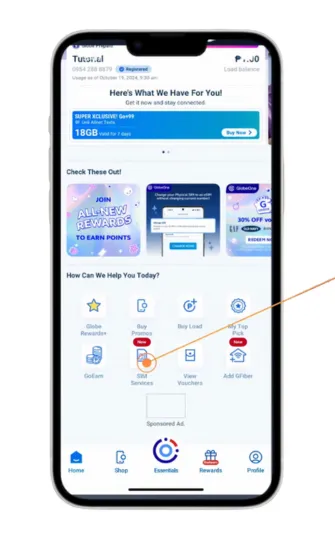
Step 2: Tap SIM Services. On the Home tab, find the SIM Services icon and tap it to open your SIM options.
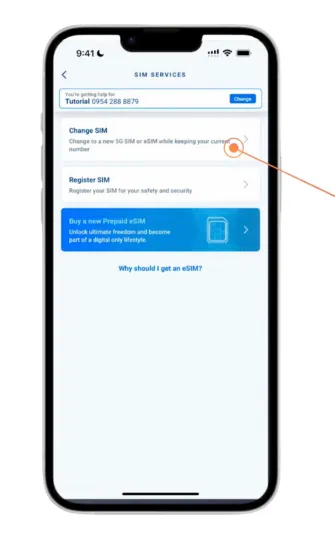
Step 3: Choose Change SIM. Inside SIM Services, tap the option labeled Change SIM. This lets you switch to a 5G SIM or eSIM while keeping your current number.
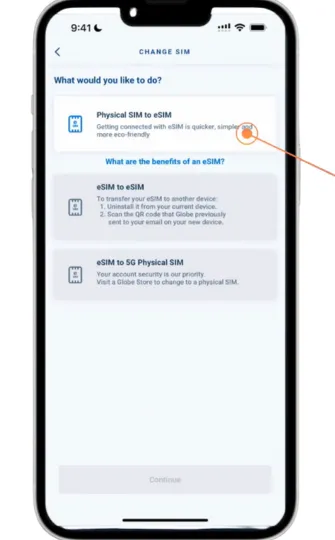
Step 4: Select Physical SIM to eSIM. From the list of choices, select Physical SIM to eSIM. This is the option to convert your physical SIM into an eSIM.
Step 5: Review the reminders before upgrading. The app will show things you need to check, such as making sure your phone is connected to stable WiFi, supports eSIM, has an available eSIM slot, and is not network-locked. Also copy any contacts from the SIM card to your phone. Check the boxes to confirm that you are ready to upgrade and that you own the SIM.
Step 6: Enter the verification code. A verification code will be sent to your current mobile number. Enter the code in the spaces shown to confirm your identity.
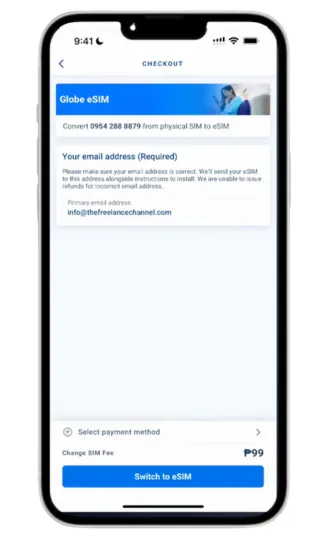
Step 7: Enter your email address. Type your email address in the field. Globe will send your eSIM and installation instructions to this email. Tap Switch to eSIM and pay the required fee.
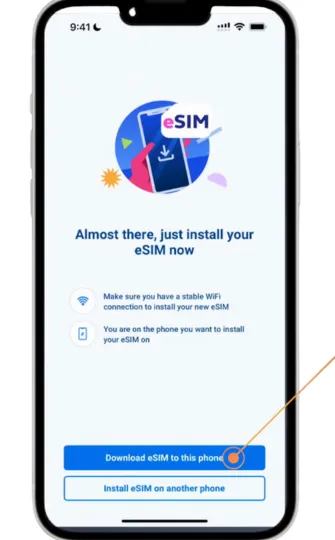
Step 8: Choose how to install the eSIM. You will see two options. Tap Download eSIM to this phone to install the eSIM directly on the device you are using.
Step 9: Wait for the cellular setup to complete. Your phone will begin setting up the eSIM. When the setup is done, the screen will show Cellular Setup Complete. Tap Done.
Step 10: Return to the GlobeOne app. The app will ask you to return and activate your eSIM. Tap Download eSIM again if the app tells you to.
Step 11: Tap Allow when your phone asks to activate the new eSIM. Your iPhone will show a popup asking to activate the new eSIM. Tap Allow so the device can continue with the setup.
Step 12: Tap Continue to activate the eSIM. A screen will appear saying Activate eSIM. Tap Continue to confirm activation.

Step 13: Choose your Cellular Plan Labels. You can label the lines, such as Tutorial or Secondary. Select your preferred labels and tap Continue.
Step 14: Choose your Default Line. Choose which number you want to use as your main line for calls and messages. Select the line and tap Continue.
Step 15: A final activation message will appear saying your eSIM will connect to the Globe network shortly. This may take a few minutes or up to 24 hours. You can keep using your physical SIM until the eSIM connects. After the eSIM becomes active, your physical SIM will stop working and can be removed. Tap Return to Dashboard to finish.
Note: If you are living in Malaysia for study purposes and need to log in to AINS NILAM, you can use globe SIM roaming services to get better internet speed and connectivity.
Steps of Converting SIM to eSIM at Globe Store
- Go to your nearest Globe store with your physical SIM card and a valid ID.
- Tell the staff that you want to convert your physical SIM into an eSIM.
- They will check your account and make sure your phone supports eSIM.
- You may need to pay the conversion fee.
- The staff will create an eSIM activation QR code or an eSIM profile for your device.
- On your phone, open Settings and go to Mobile Network or Cellular, then tap Add eSIM. Scan the QR code or download the profile to install it.
- After the eSIM is activated, your physical SIM will stop working. Check that mobile data and calls are working properly on the eSIM.
- If everything works, the process is complete. Your number stays the same and your phone will now use the eSIM.
- Keep any email or receipt you receive along with the eSIM QR code or profile for future use, especially if you change your device later.
How to Check Phone is Unlocked to Carrier?
For iOS users:
- Open the Settings app on your iPhone.
- Then click on the General option and go.
- Then in the next step tap the About button option.
- Scroll down to Carrier Lock option and click it.
- If it shows No SIM restrictions, your iPhone is unlocked.
For Android users:
- Simply open the Settings app on your Android phone.
- Then find and click Connections or Network & Internet option, depending on your device.
- Then go to the Mobile Networks option by clicking it.
- Tap Network Operators for checking network carrier.
- In the final step tap the Search Now option.
- If you see multiple carrier names, your phone is unlocked.
Benefits of Converting Physical SIM to eSIM
No physical SIM card needed
You don’t have to carry a small plastic SIM card or worry about losing it, damaging it, or putting it in the wrong way. Moreover you don’t need to insert or remove SIM in SIM tray.
Faster and easier activation
You can activate the eSIM by scanning a QR code or downloading a profile on your phone. This is much faster than getting a physical SIM from a store.
Better security
The eSIM is built inside the device, so it cannot be removed easily. This makes it safer if your phone gets lost or stolen.
Supports multiple numbers
If your device supports it, you can use more than one mobile number on the same phone without changing SIM cards.
Easier when changing devices or traveling
If you change your phone or travel to another country, using an eSIM makes switching lines faster and more convenient because there is no physical SIM to move.
Keeps your number same
When you convert your physical SIM to an eSIM, you can keep the same mobile number. Using an eSIM reduces plastic waste because there is no physical SIM card or packaging.
Important Benefit: You can also purchase promos such as GoSURF, GoUNLI, Globe Go by using Globe eSIM after successful conversion.
Common Problems and Solution
Even though the process of physical sim conversion to esim is very simple, but some users face issues when converting their SIM.
Phone Not Compatible
Older smartphones may not support eSIM technology. You can see the list on official website that which phones are compatible to eSIM.
Network-Locked Device
If your phone is locked to another carrier, the Globe eSIM may not work. So reset your phone, if it still doesn’t work then contact officials.
Activation Delay
Some users report waiting several hours or even a day before the eSIM becomes active. So it could be server side issues wait until the process becomes smooth for you.
Email Not Received
Sometimes the QR code email may land in the spam folder. Check you email in spam folder and then proceed sim conversion by following above method.