How to Check Balance in Globe
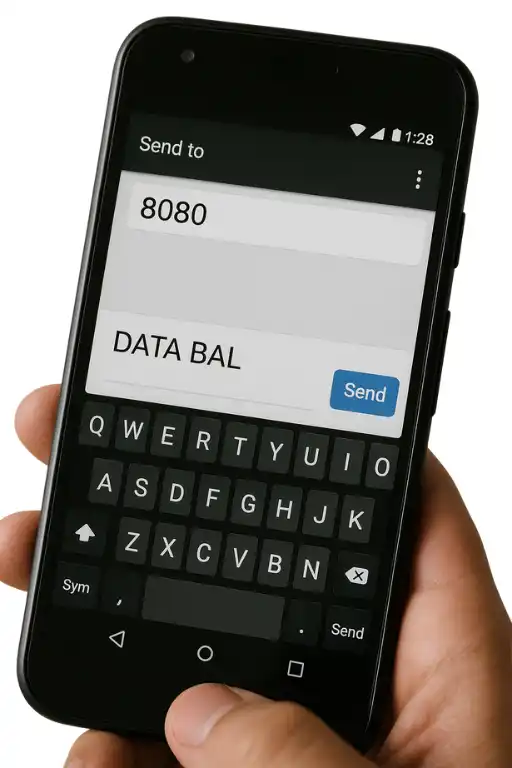
You can check Globe SIM load balance, data balance, and WiFi balance by the following guidelines below. There are three methods of checking promo data and SIM load balance: by GlobeOne app, using USSD code, and sending text to 8080.

Globe Telecom provides services to check balance for Globe At Home prepaid WiFi. Before availing Globe Customer services, you must proceed with Globe SIM Registration steps. It is also the best solution to check registration status through checking balance.
Methods of Globe Balance Inquiry Check
Below all the methods are given step by step with extra guidelines to make the process smooth and simple.
- Using the USSD Code
- Using SMS
- Using Official App (GlobeOne)
Method 1: Using the USSD Code
You can use this method for your keypad phones which is beneficial for keypad users without needing an internet connection, and using this method you can check these types of Balance Inquiry in Globe SIM:
- Check Globe SIM Card Balance
- Globe Promo Data Balance Inquiry
- Check WiFi Balance
Check Globe SIM Card Balance
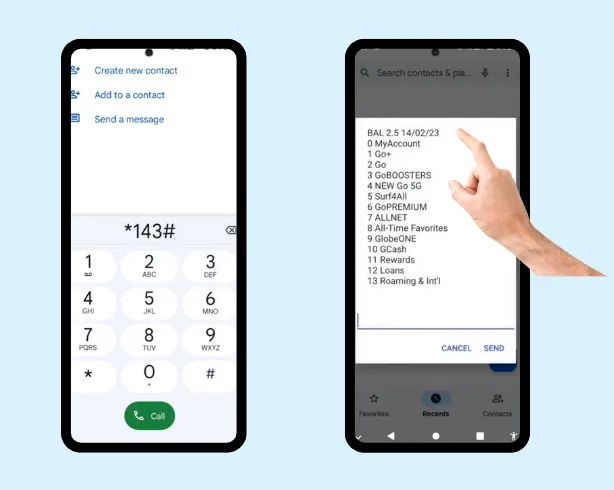
- Open the dialer on your phone.
- Type *143# and press call and hit send.
- The Globe SIM load balance will appear on the top of the screen.
Globe Promo Data Balance Inquiry
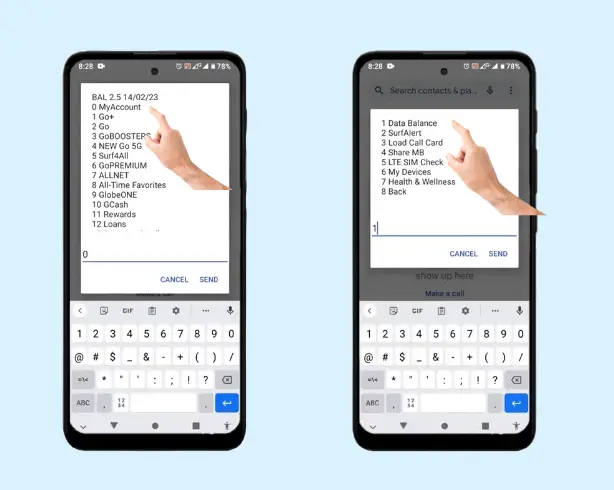
- Dial *143# on your phone.
- When the menu shows up, type 0 to select My Account.
- Then type 1 to choose Data Balance.
How to Check WiFi Balance
- Type 1 to choose Mobile WiFi balance.
- Choose your account type: enter 1 if you are a prepaid user or type 2 if you are a postpaid user.
- Enter your Mobile WiFi/MyFi number and press Send.
- Type 1 for Balance Inquiry.
- Your remaining WiFi balance will now appear on the screen.
- When the menu appears, choose “Balance Inquiry” or “My Account.”
- Your remaining load, data, or promo balance will show on the screen. This method works even without internet, as long as your phone has globe sim signal.
Method 2: Using SMS
Method 3: Using the GlobeOne App
Step 1: Install the GlobeOne app on your phone from the Google Play Store (Android) or the App Store (iPhone).
Step 2: Open the app, enter your Globe mobile number, and log in.
Step 3: On the home screen, you will see your load balance, data balance, and any active promo you are using.
Step 4: Click on the “data usage” option to see full details of your promo data balance and SIM card balances.
Step 5: You can also check extra details like bills, past balances, or your promo subscriptions.
Common Issues and Solution
Why is 143# not working?
Possible reasons
- Temporary Globe network issue
- SIM not properly registered
- Weak signal or roaming
- Globe migrating services to the GlobeOne app
Solutions
- Restart your phone
- Turn Airplane Mode on and then off
- Use the GlobeOne app instead
Texting BAL to 222 but not receiving a reply?
Reasons:
- SMS service outage
- Insufficient signal
- SIM not active or expired
- Network delay
Fix:
- Wait a few minutes and try again
- Restart your phone
- Check your balance through the GlobeOne app
Best Method to Check Balance
Below is the comparison table given which method is effective for you to check Globe SIM Card Balance or data balance.
| Method | Applicable to Device | Internet needed? | Best for |
|---|---|---|---|
| USSD Code | Keypad Phone, Android, iPhone | No | Fast check, no internet needed |
| SMS/Text | Keypad Phone, Android, iPhone | No | When you prefer text and basic service |
| GlobeOne App | Smartphones | Yes | Full details, promos, usage history |
Tips in Case GlobeOne Not Showing Balance
If your GlobeOne App is not showing balance, you can use these tips to resolve the errors.
Check Internet Connection
First of all, check your internet connection. You can try it by playing a YouTube video; by doing it, you will confirm whether the internet is working fine or not.
If the internet is slow, then try to move to the area where SIM signals work fast.
Close and Reopen App
If the app suddenly crashes when opened, then close the app and open it again.
If the problem persists, then clear the cache in the app. Clear the cache of the app in the settings of your phone.
Update and Login Again
In case you are trying to refresh the app but the dashboard is loading and not displaying, then logout from the app and log in again.
Please make sure the app is updated to the latest version. You can check it through Play Store or App Store where you will find the “update” option.
Clear Cache Method
You can clear cache in Android in Settings of the phone, then click Apps, then tap GlobeOne, click Storage and Clear Cache.
Restart your phone then recheck Globe balance in the app to test whether it’s working fine.